What's new
Everything we've shipped to Harbour, newest first.
July 2026
-
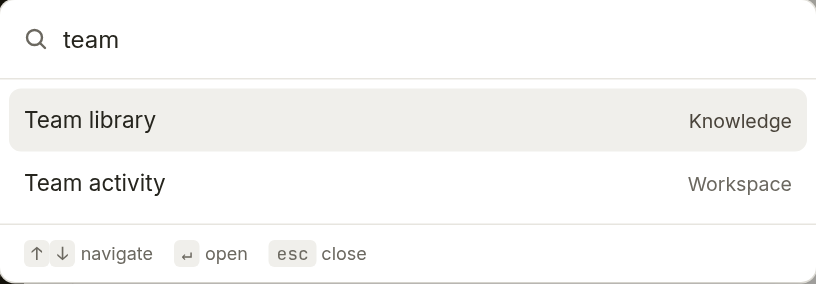
A more polished workspace: toasts, ⌘K, and more
Branded notifications, a command palette, empty-state guidance, and real-time form validation.
Read more
What it is
A sweep of interaction polish: confirmations now appear as branded toasts instead of page banners; a command palette (press ⌘K, or Ctrl+K) jumps you to any section; empty screens explain what to do next with on-brand illustrations; forms validate as you type; and native browser controls were restyled to match Harbour throughout.
Why we built it
The workspace worked well, but small moments — a jarring browser popup, a bare "nothing here," a form that only tells you what's wrong after you submit — quietly signalled "unfinished." Those moments are where trust is won or lost.
Why it matters
Polish is a feature. It's the difference between a tool people tolerate and one they enjoy, and it tells every visitor that this is mature, cared-for software worth relying on.
Try it- Press Ctrl/⌘ + K anywhere, or click Jump to… in the topbar, to open the command palette.
- Watch for toast confirmations bottom-right after you save or change something.
- Forms now flag problems as you type — no need to submit to find out.
-
Your workspace gets smarter the more you use it
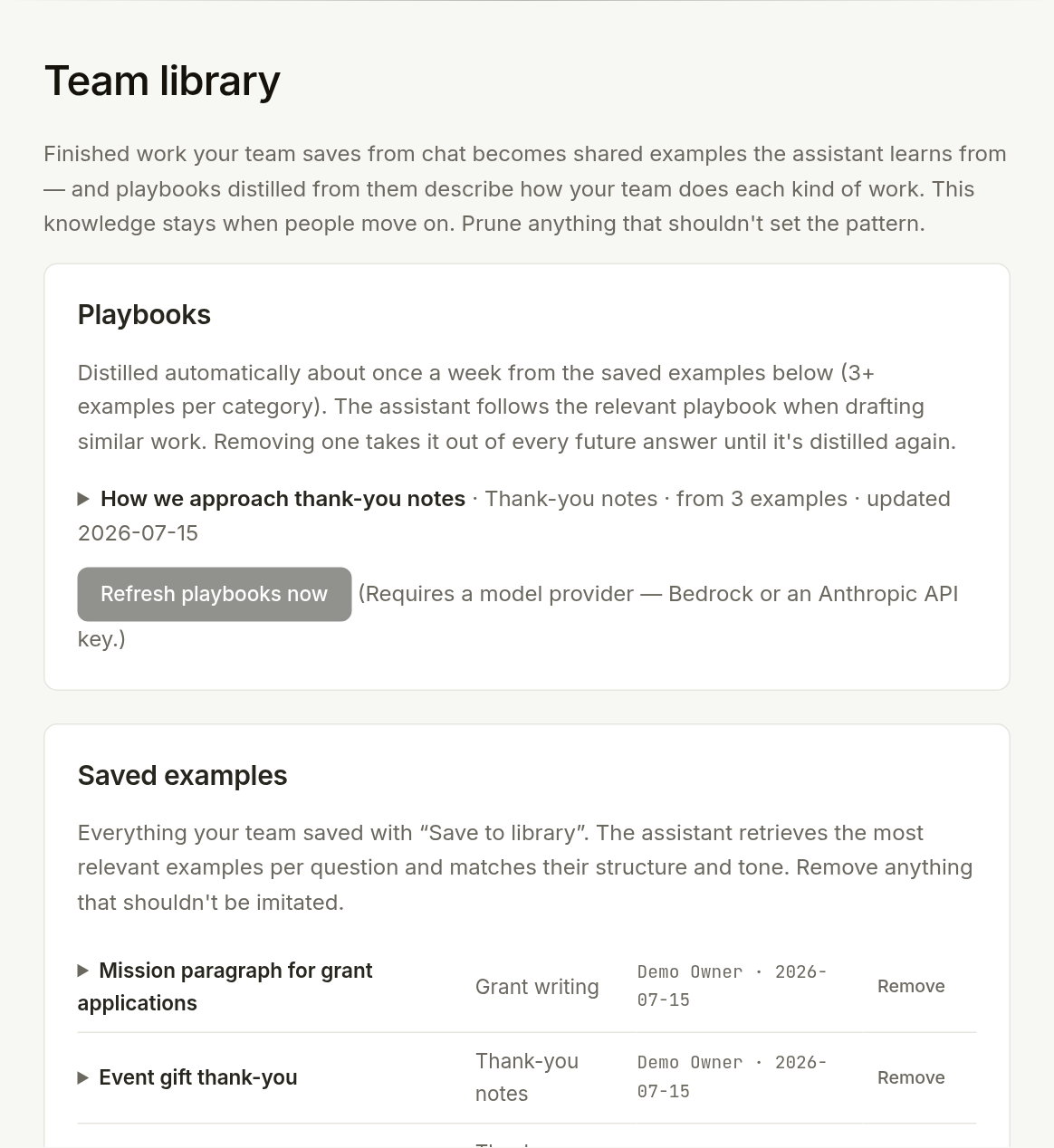
Save great work to a shared team library — and the assistant learns your team's style, so the knowledge survives staff turnover.
Read more
What it is
The team library lets anyone save a finished piece of work — a thank-you note, a grant paragraph — as a shared example. The assistant retrieves the most relevant examples for each new request and matches their structure and tone. From those examples it distills playbooks ("how we write thank-you notes here"), and when someone leaves, you can generate a handover document from what they built.
Why we built it
When a foundation's legacy giving manager retires, decades of hard-won craft — her phrasing, her conventions, the way she handled estate donors — walked out the door with her. That institutional knowledge was trapped in one person's private chat history.
Why it matters
The workspace now compounds. Every good piece of work makes the next one better, the house style outlives any individual, and a new hire inherits the team's accumulated craft on day one instead of starting from scratch. Your usage becomes an asset that stays.
Try it- In chat, hover an answer worth keeping and choose Save to library.
- Review saved examples and playbooks under Admin → Team library.
- When someone leaves, generate a handover from Admin → Users → Handover.
-
Accessibility, owner transfer, and audit filters
Keyboard- and touch-friendly controls, a clean way to hand off ownership, and a filterable, exportable audit trail.
Read more
What it is
A round of maturity work: every control is reachable by keyboard and comfortable on touch with proper contrast; a workspace owner can transfer ownership to a colleague (and offboard people cleanly); and the audit trail gained filters, pagination, and CSV export.
Why we built it
As real teams settled in, the rough edges showed — a control you couldn't tab to, no way to hand off the owner account when someone left, an audit log that was hard to search. Small frictions, but they add up.
Why it matters
This is the unglamorous work that makes software feel dependable. Nothing flashy, but everyone can use every part of it, ownership survives staff changes, and the audit trail answers real questions instead of just existing.
Try it- Transfer ownership from Admin → Users → Make owner (owners only).
- Filter and export the log from Admin → Audit trail.
- Everything is reachable by keyboard — try tabbing through any screen.
-
Draft reviews and feedback triage
Send a draft for a colleague's review, and turn every thumbs-down into a tracked to-do.
Read more
What it is
Two workflow additions. Request a review on a canvas draft and it lands in an admin approval queue for a colleague to approve or send back with notes. And every thumbs-down on an answer now opens an optional "what was wrong?" note and flows into a triage queue admins can work through.
Why we built it
Good work usually needs a second set of eyes, and good feedback shouldn't evaporate. Both the review and the complaint were happening informally, off-platform, where they got lost.
Why it matters
Reviews bring the approval step into the tool where the work is done. Triage makes negative feedback actionable instead of anonymous — each flag becomes a specific thing to fix, which is how the assistant gets better over time.
Try it- In the canvas, choose Request review to send a draft to the admin queue.
- A reviewer approves it or sends it back with notes under Admin → Draft reviews.
- Thumbs-down on any answer, add a note, and work the queue under Admin → Feedback.
-
See how your whole team is using it
An admin dashboard showing who's active, how much, and — with the workspace's consent — the conversations behind it.
Read more
What it is
The team activity dashboard shows per-person usage across the workspace: who's active, how many questions they've asked, and estimated cost. Admins can open any conversation to understand how the tool is being used — and every time they do, it's recorded in the audit trail.
Why we built it
Owners investing in a workspace need to know it's landing — who's getting value, who hasn't started, and whether the answers are any good. That visibility was missing.
Why it matters
It closes the loop between rolling a tool out and knowing it worked. Admins can spot the people who'd benefit from a nudge, learn from how power users work, and do it all with a transparent, audited trail.
Try it- Open Admin → Team activity.
- See per-person usage, and click any conversation to read it (recorded in the audit trail).
- Spot who'd benefit from a nudge, and learn from how your power users work.
-
Board-ready assurance reports
Run a check of the assistant against a set of questions, review the answers, and export a dated report for your board.
Read more
What it is
The assistant check runs a chosen set of questions against your real configuration, lets an admin mark each answer pass or fail, and produces a dated, branded report that prints to a clean PDF. Checks can run on a schedule and re-run automatically when your prompt or knowledge changes.
Why we built it
"Is the AI giving good answers?" is a question a board will ask, and "trust me" isn't an answer. Leaders needed evidence they could table — proof the tool was reviewed, not just deployed.
Why it matters
Assurance reports turn confidence into a document. They give the person championing Harbour something concrete to show, and they catch regressions before your staff — or your donors — do.
Try it- Open Admin → Assistant check and choose a scope.
- Let the run finish, then mark each answer pass or fail.
- Open the report and print it to a dated PDF for your board package.
June 2026
-
Workflows: repeatable work, done your way
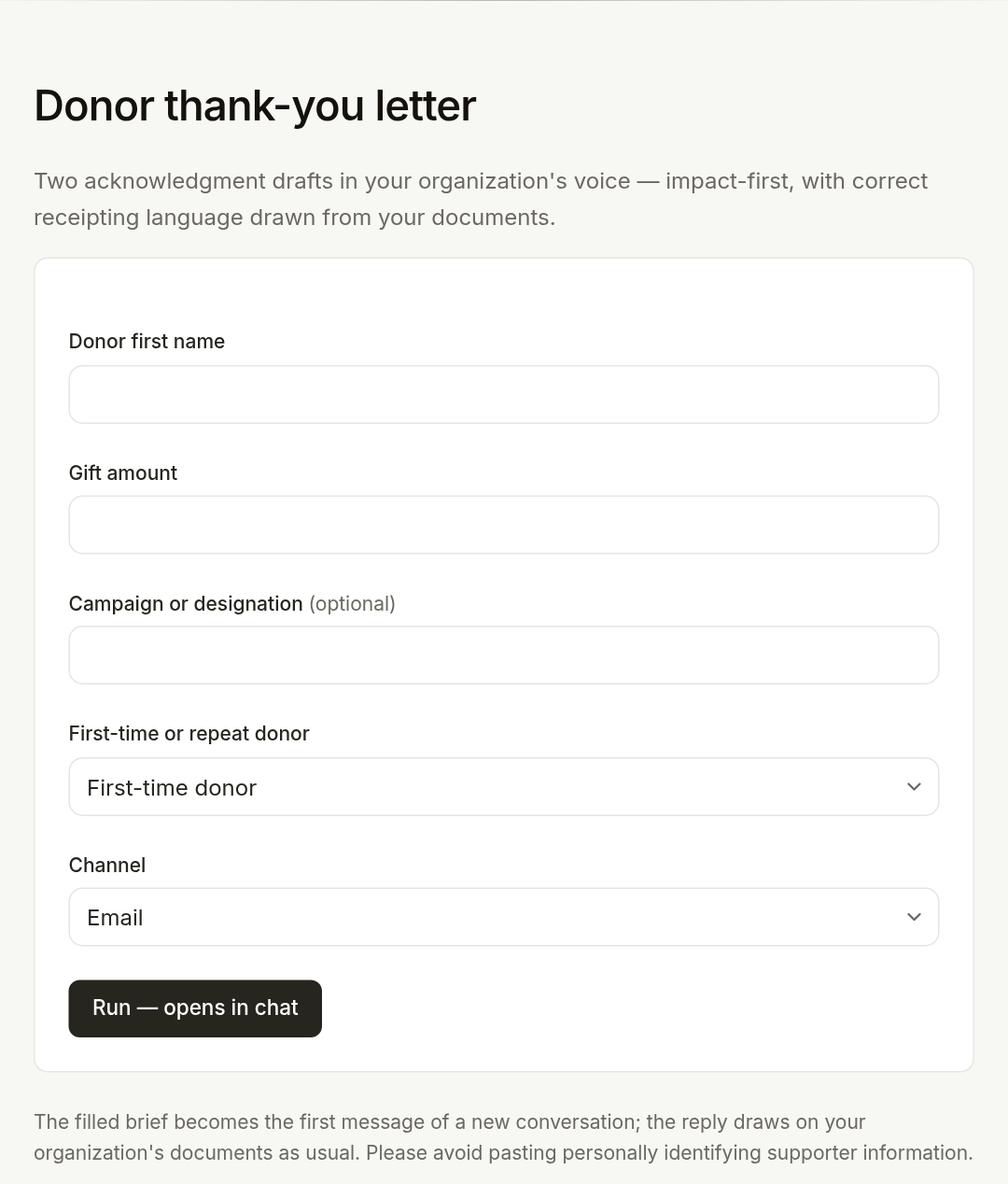
Turn your highest-value tasks into a guided form and a template — consistent output every time.
Read more
What it is
Workflows replace the blank chat box for the tasks you do again and again. Pick a workflow, fill in a short form, and get a structured draft assembled from your inputs, your knowledge base, and your organization's voice. Harbour ships a starter library; each one becomes yours to edit once enabled.
Why we built it
The most valuable work is also the most repeated — thank-you letters, grant paragraphs, board summaries. Freehand chat gave inconsistent results and made people re-explain the format every time.
Why it matters
Workflows make good output repeatable and hand your best process to the whole team as a form anyone can fill. They're the bridge from "an assistant that answers questions" to "a tool that produces our standard deliverables."
Try it- Go to Admin → Workflows and Enable one from the library.
- Your team picks it from the chat screen and fills in the short form.
- Edit the template anytime under Admin → Workflows — the copy is yours.
-
Attach files and images to any chat
Drop a document or a photo into a conversation and ask about it directly.
Read more
What it is
You can now attach a file or an image to a conversation. Ask about a specific PDF you're holding, or drop in a photo of a flyer or a form and have the assistant read and respond to it — no need to add it to the permanent knowledge base first.
Why we built it
Sometimes the thing you want help with is a one-off: this grant guideline, this photo, this draft. Forcing everything through the shared knowledge base was the wrong tool for a quick, personal question.
Why it matters
It makes the assistant useful in the moment, for the document in front of you. Attachments stay with your conversation and out of everyone else's — a private workspace for whatever you're working on right now.
Try it- In a chat, click the attach button by the composer.
- Add a document or an image (a flyer, a form, a photo).
- Ask about it directly — it stays with this conversation only.
-
Add knowledge from the web and Google Drive
Pull in a public web page, survey a whole site, or sync selected files and folders from Google Drive.
Read more
What it is
Knowledge no longer has to be uploaded by hand. Add a public web page or PDF by its address, let Harbour survey an entire website and propose which pages to add, or connect Google Drive and keep chosen files and folders in sync automatically.
Why we built it
Most of what a foundation knows already lives somewhere — on its website, in a shared Drive. Asking admins to download and re-upload all of it was busywork that kept knowledge bases thinner than they should be.
Why it matters
Bringing knowledge in becomes effortless, and Drive sync keeps it current without anyone remembering to. A richer, fresher knowledge base means better answers — with far less manual upkeep.
Try it- In Admin → Knowledge base, choose Add from the web — paste a page or PDF address, or survey a whole site.
- Or connect Google Drive and pick the files and folders to sync.
- Approve what's proposed; synced files stay current automatically.
-
Keep your knowledge base fresh
Review dates, a health strip, usage stats, and bulk actions make the knowledge base easy to keep current.
Read more
What it is
The knowledge base got a management upgrade: each document has a review cadence and shows when it's due, a health strip summarizes the whole library at a glance, you can see how often each document actually grounded an answer, and bulk actions let you review or retire documents in batches.
Why we built it
A knowledge base decays. Policies change, programs end, and stale documents quietly produce wrong answers. Admins needed to see what was aging and what was pulling its weight.
Why it matters
Good answers depend on good documents. These tools make it obvious what needs attention, so the knowledge base stays trustworthy instead of slowly drifting out of date.
Try it- In Admin → Knowledge base, check the health strip and review queue.
- Set a review cadence per document, and Mark reviewed when you've checked one.
- Use the filters and bulk actions to tidy or retire documents in batches.
-
See the questions your knowledge base can't answer
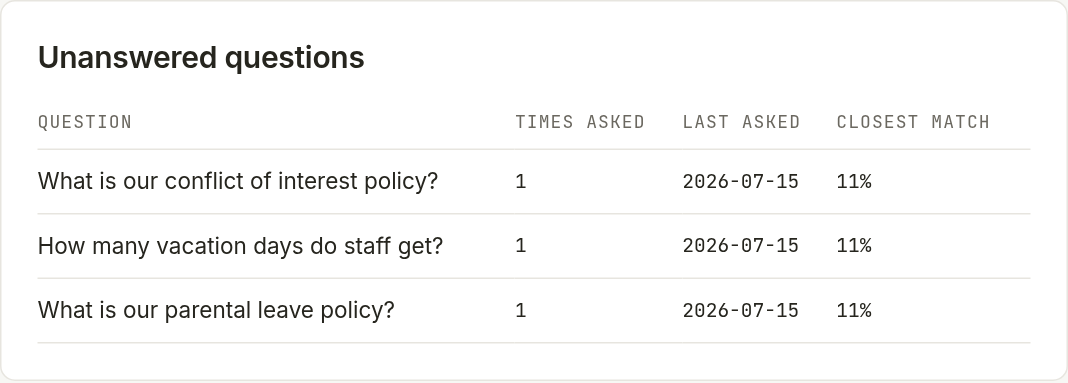
A report that surfaces what people asked that your documents didn't cover — grouped into themes.
Read more
What it is
The gaps report collects the questions where the assistant had nothing in your knowledge base to answer from, groups them into themes ("Parental leave policy — 6 questions. No document covers this"), and shows them to admins as a to-do.
Why we built it
The most valuable signal a workspace produces is what it can't answer — that's exactly the document you're missing. But that signal was invisible, scattered across hundreds of individual conversations.
Why it matters
The gaps report turns everyday use into a roadmap for your knowledge base. Instead of guessing what to upload next, you can see precisely where your documentation falls short and fix the things people actually ask about.
Try it- Open Admin → Gaps report.
- Review the questions your knowledge base couldn't answer, grouped into themes.
- Add a document that covers a theme — the gap closes on the next ask.
-
The assistant searches your library itself
For deeper questions, the assistant now runs its own searches through your knowledge base mid-answer.
Read more
What it is
Beyond the passages pulled in automatically, the assistant can now search your document library itself while it's answering — running its own queries, rephrasing when the first misses, and digging through a large knowledge base instead of settling for the first match.
Why we built it
A single up-front search is fine for simple questions but misses things in a big library. The assistant needed to be able to look harder when the first pass didn't fully answer the question.
Why it matters
Answers get noticeably better on the hard questions — the ones where the relevant policy is buried three documents deep. The more you put in your knowledge base, the more this pays off.
-
The assistant remembers what matters
Save standing facts — your fiscal year, your registration number, your terminology — that the assistant carries into every conversation.
Read more
What it is
Assistant memory holds a short list of standing facts about your organization — your charitable number, your fiscal year end, that you call donors "supporters." The assistant treats them as reliable background in every conversation. It can also suggest new facts it notices, but nothing is remembered until an admin approves it.
Why we built it
People were repeating the same context in conversation after conversation. Facts that never change shouldn't have to be restated every time — and the assistant shouldn't quietly invent them either.
Why it matters
Memory makes answers consistent and saves everyone the retyping, while the approval step keeps you in control of what the assistant treats as true. It's a small feature that quietly removes a lot of friction.
Try it- Go to Admin → Assistant memory.
- Add a standing fact ("Our fiscal year ends March 31") and save.
- Optionally turn on suggestions, then approve the facts the assistant proposes.
-
Think deeper, and talk instead of type
A "Think deeper" mode for hard questions, and dictation so you can speak your message.
Read more
What it is
Two additions to the composer: a "Think deeper" toggle that lets the assistant take more time on genuinely hard questions, and dictation, so you can speak instead of type.
Why we built it
Some questions — a tricky policy interpretation, a delicate donor situation — deserve more than a quick reply. And not everyone wants to type; some of the best thinking happens out loud.
Why it matters
These meet people where they are. Hard questions get the care they need, and dictation lowers the barrier for staff who find a blinking cursor more daunting than a conversation.
Try it- In the composer, toggle Think deeper before sending a hard question.
- Or tap the microphone to dictate your message instead of typing.
-
A writing canvas beside the chat
Draft in a dedicated editor next to the conversation, revise with a click, and export to Word.
Read more
What it is
The canvas opens a proper editing surface alongside the chat. Draft a letter or a grant paragraph, select any part and ask for a change ("warmer," "shorter," "more formal"), and export the finished piece straight to a Word document.
Why we built it
Real writing doesn't happen in a chat bubble. People were copying drafts out to Word, editing, pasting back, and losing the thread. The work deserved a place to actually live.
Why it matters
The canvas turns Harbour from something that answers questions into something you produce finished work in. Drafts stay private to their author, revise in place, and leave as a polished Word file ready to send.
Try it- In a chat, open the canvas from a draft the assistant produced.
- Select any passage and choose a change — Shorter, Warmer, More formal — or type your own.
- Export the finished piece to Word with Download → Word (.docx).
May 2026
-
Admins-only documents and an audit trail
Mark sensitive documents visible to admins only, and see a log of who changed what.
Read more
What it is
Knowledge base documents can be flagged admins-only, so board packets or draft policy never surface in a regular member's answers. And a new audit trail records administrative changes — invites, role changes, document edits — with who did them and when.
Why we built it
Not everything in a foundation is for everyone. HR material and board documents needed a way to inform admins' answers without leaking into the whole team's — and governance-minded leaders wanted a record of who did what.
Why it matters
Together these give admins real control and real accountability. Sensitive knowledge can live in the workspace safely, and there's always a clear answer to "who changed this?" — the kind of oversight a board expects.
Try it- In Admin → Knowledge base, set a sensitive document to Admins only.
- Members' answers will never draw on it; admins' still can.
- Review who changed what anytime under Admin → Audit trail.
-
Nonprofit knowledge packs, one click away
Install vetted starter knowledge — CRA receipting, PIPEDA basics, Imagine Canada standards — as general reference.
Read more
What it is
A small library of installable knowledge packs covering common Canadian nonprofit ground: charitable receipting, privacy basics, sector standards. One click adds a pack to your knowledge base, clearly labelled as general reference rather than legal advice.
Why we built it
Every foundation re-answers the same baseline questions, and few have the time to write that reference from scratch. Meanwhile a brand-new workspace with an empty knowledge base gives thin answers on exactly these topics.
Why it matters
Packs give a new workspace useful depth on day one and save experienced teams from reinventing common material. They're versioned, so when the reference is updated you can review the changes and choose to adopt them.
Try it- Go to Admin → Knowledge base and find Starter packs.
- Click Install on a pack (CRA receipting, PIPEDA basics, and more).
- It joins your knowledge base, clearly labelled as general reference.
-
Export everything. Delete everything.
Your data leaves as easily as it arrived — full export, and a real delete when you ask for it.
Read more
What it is
Organizations can export their workspace data and, when they choose, have it fully deleted. The data promise stops being a paragraph and becomes an operation you can actually run.
Why we built it
"Your data is yours" only means something if you can take it and go. A promise you can't act on is marketing; a promise with a working button behind it is trust.
Why it matters
Knowing you can leave is what makes it safe to commit. Reversible decisions are easy to say yes to — and a clean exit path is exactly what a careful board wants to see before signing.
Try it- Open Admin → Plan & workspace.
- Request a full export of your workspace data, or a full deletion.
- Your data leaves in a portable format — the promise is an operation, not just a page.
-
A quiet weekly note on how it's going
Owners and admins get a short weekly email — messages answered, people active, and anything that needs a look.
Read more
What it is
Once a week, workspace owners and admins receive a short plain-text email summarizing the week: how many questions were answered, how many people used the assistant, and anything worth their attention.
Why we built it
Admins are busy and don't log in just to check dashboards. Without a nudge, a workspace quietly fades from view — and nobody notices the knowledge base going stale or a flagged answer sitting unread.
Why it matters
The digest keeps Harbour present without demanding attention. It surfaces the few things that actually need a decision, and over time it's the gentle reminder that keeps the workspace healthy and used.
Try it- The digest is on by default for owners and admins — no setup needed.
- To turn it off, open Admin → Plan & workspace and toggle the weekly note.
-
Starter prompts your whole team can reuse
Save your best prompts as one-click starters, so nobody stares at a blank chat box.
Read more
What it is
Admins can save reusable prompts — "Draft a donor thank-you," "Summarize this policy in plain language," "Write a grant paragraph in our voice" — that appear as one-click cards when anyone opens a new conversation.
Why we built it
The blank chat box is intimidating. Staff who aren't sure what to type, or how to phrase it, simply don't start — and the tool goes unused no matter how good it is underneath.
Why it matters
Starter prompts turn a blank page into a menu. They spread the know-how of your most fluent users to everyone, so the whole team gets good results from day one instead of learning prompt-craft the hard way.
Try it- Go to Admin → Starter prompts.
- Add a title and the prompt text, then save.
- Your team sees it as a one-click card on the empty chat screen.
-
Simple, seat-based plans
Flat monthly pricing by team size, managed through Stripe — no enterprise negotiation.
Read more
What it is
Harbour now has straightforward plans billed by seat band, handled through Stripe. Upgrade, downgrade, and manage payment details from the Plan & workspace page; seat limits are enforced as you invite people.
Why we built it
Enterprise software buries pricing behind a sales call. Nonprofits, running lean, needed the opposite: a number they can see, budget for, and approve without a procurement project.
Why it matters
Predictable pricing removes the last barrier between "we'd like to try this" and "we're using this." It keeps Harbour true to its promise — no IT project, no negotiation, one simple price.
Try it- Open Admin → Plan & workspace.
- Choose a plan and complete checkout through Stripe.
- Manage payment details or change plans from the same page anytime.
-
Make it unmistakably yours
Upload a logo, set your colours and assistant name, and write the welcome your team sees.
Read more
What it is
The branding controls got a full pass: upload a logo served from private storage, pick your primary and secondary colours, name the assistant ("TBRHSF AI"), and write the welcome message on the empty chat screen.
Why we built it
A tool your team trusts should look like it belongs to your organization, not to us. Small branding gaps — a stock name here, a default colour there — quietly signal "this is someone else's software."
Why it matters
When the assistant carries your name, your colours, and your voice, staff treat it as an official part of how your organization works. That sense of ownership is what turns a pilot into a habit.
Try it- Go to Admin → Branding & voice.
- Upload your logo, set your colours and assistant name, and write a welcome message.
- Save — the topbar, chat screen, and sign-in all update to match.
-
Set up a workspace in an afternoon
A guided sign-up that turns a few questions about your organization into a ready-to-use, branded assistant.
Read more
What it is
New organizations can now create their own workspace through a short guided flow. A handful of questions — your mission, your audience, your preferred terminology, your tone — become a starter configuration, so the assistant sounds like you before you've uploaded a single document.
Why we built it
Waiting for someone to hand-build your workspace is friction that kills momentum. The whole thesis of Harbour is "simple, safe, yours," and setup needed to match that promise.
Why it matters
The target was always "up and running in one afternoon." Self-serve onboarding makes that real — a foundation can go from curious to chatting with a branded, voice-matched assistant the same day.
Try it- From the marketing site, choose Get started.
- Answer the short questionnaire — mission, audience, tone, terminology.
- Land in your new, branded workspace and start uploading documents.
-
Tenant isolation and the security floor
Every query is scoped to one organization at the database level, with rate limits and CSRF protection across the app.
Read more
What it is
Under the hood, every piece of data access runs through a layer that requires an organization id, backed by database row-level security as a second wall. On top of that: rate limiting on chat and uploads, CSRF protection on every form, and hardened HTTP headers.
Why we built it
A cross-tenant data leak would end a product like this permanently. One organization must never, under any circumstance, see another's conversations or documents — and that guarantee has to hold even if a bug slips through.
Why it matters
It's the invisible work that makes everything else safe to use. The isolation is enforced in two independent places, so a single mistake can't expose another tenant's data — which is what lets us make the data promise and mean it.
April 2026
-
The data promise, in plain language
A printable, board-ready page explaining exactly how your data is handled.
Read more
What it is
A dedicated page that states, in plain language, how Harbour treats your data: conversations aren't used to train models, each workspace is isolated, and your data is yours to export or delete. It's written to be read aloud in a board meeting and printed for a file.
Why we built it
The single biggest objection to AI in the nonprofit sector isn't price — it's "what happens to our data?" Leaders needed an answer they could hand to a cautious board member without translating it first.
Why it matters
Trust is the product. This page turns an abstract worry into a concrete, defensible statement, and it doubles as a sales asset for the person who has to champion Harbour internally.
-
Invite your team and run the workspace
An admin panel to invite people, set roles, manage the knowledge base, and see usage at a glance.
Read more
What it is
Admins get a dedicated panel: invite teammates by email, assign roles, upload and organize knowledge base documents, and watch usage add up over time.
Why we built it
A workspace is only useful once the whole team is in it. Onboarding staff and curating the knowledge base needed to be something a non-technical admin could do without a support ticket or a developer.
Why it matters
It turns Harbour from a personal tool into a shared one. The person who owns the account can bring their team aboard, keep the knowledge current, and see that it's actually being used — all in one place.
Try it- Open Admin → Users.
- Enter a colleague's email, choose Member or Admin, and Create invite.
- Send them the invite link; they sign in with Google using that email.
-
Answers that stream in — and cite their sources
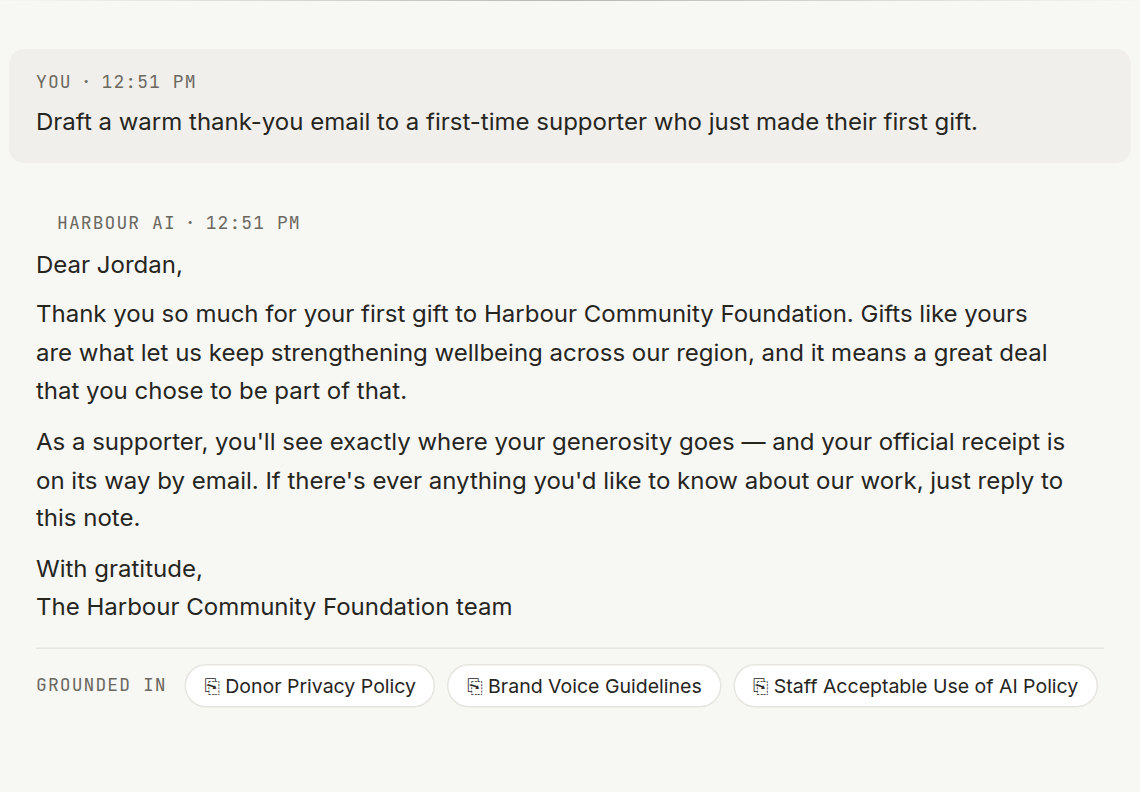
Responses appear word by word, with a "Sources" line showing which of your documents they drew on.
Read more
What it is
Replies now stream in as they're written, the way you'd expect from a modern assistant. When an answer draws on your documents, it lists them underneath — "Sources: Donor Privacy Policy, Brand Guidelines" — so you can see where it came from.
Why we built it
Waiting for a full answer to appear feels broken, and an answer with no visible source is hard to trust. Both problems undercut the moment someone decides whether this tool is worth relying on.
Why it matters
Streaming makes the assistant feel fast and alive. Citations make it feel accountable. Together they're what convince an executive director that the tool is answering from their documents — not making things up.
-
Ground every answer in your own documents
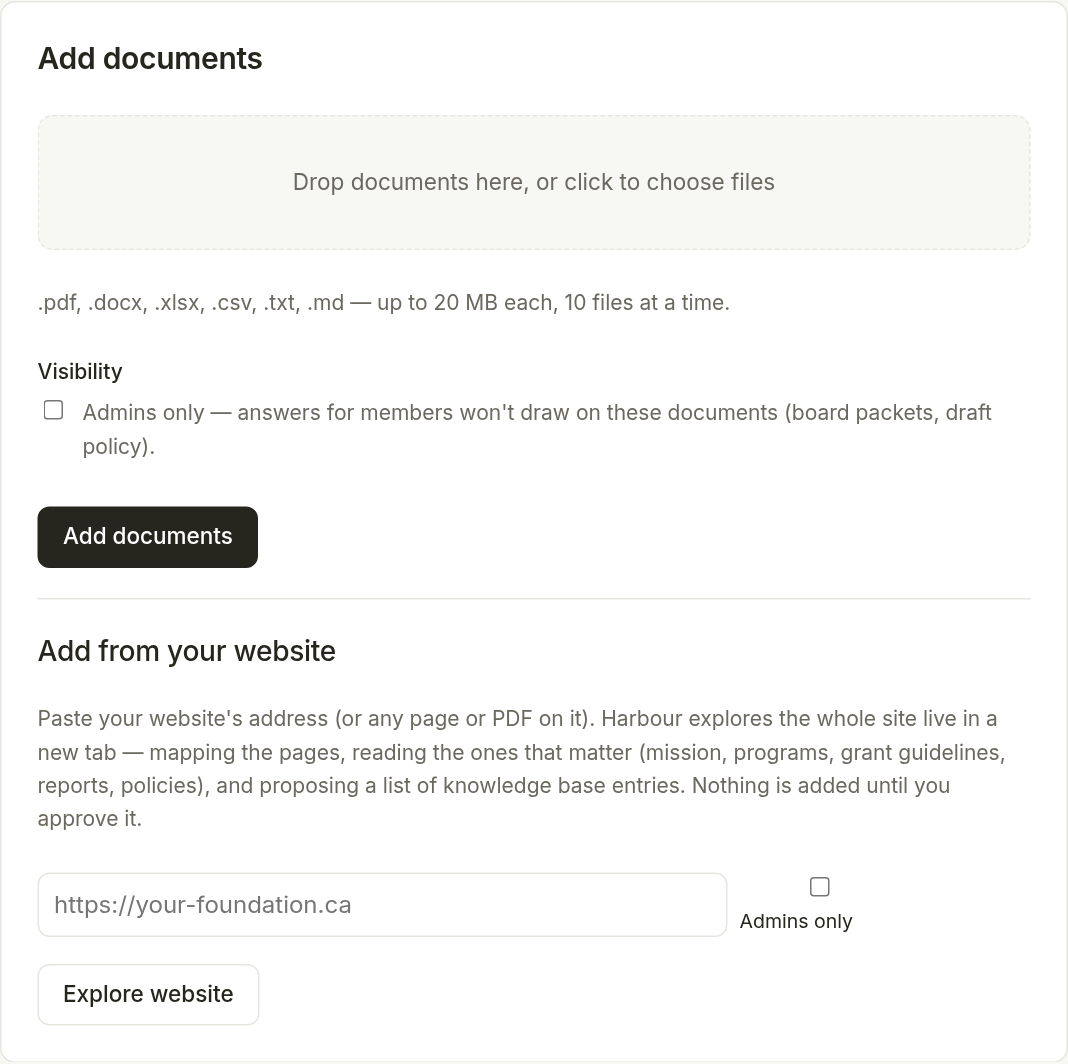
Upload your policies, mission, and brand voice — the assistant answers from them, not from the open internet.
Read more
What it is
The knowledge base lets an admin drag in PDFs, Word files, and text. Harbour reads each document, splits it into passages, and indexes them so the assistant can pull the most relevant pieces into every answer.
Why we built it
A general AI model doesn't know your gift acceptance policy, your fiscal year, or how you refer to the people who give. Without your documents, it guesses — and guessing is exactly what a nonprofit can't afford when the subject is donors or compliance.
Why it matters
Answers stop being generic and start sounding like your organization. The knowledge base is the difference between "an AI tool" and "our AI tool" — and it's what makes the assistant trustworthy enough to actually use.
Try it- Go to Admin → Knowledge base.
- Drag in PDFs, Word files, or text, or use Add from the web.
- Wait for each document to finish processing (it shows ready) — answers now draw on it.
-
Harbour is here: your foundation's own AI workspace
A branded, private AI assistant your organization owns — its name, its colours, its knowledge.
Read more
What it is
Harbour is a knowledge-grounded AI workspace built for a single organization. You sign in with Google, land on a chat page that carries your name and colours, and start asking questions. Every workspace is walled off from every other one — your conversations live in your tenant and nowhere else.
Why we built it
Nonprofit teams were already using consumer AI tools, quietly pasting donor notes, HR questions, and internal strategy into chat boxes they didn't control. Leaders needed a version their board could sign off on: owned, branded, and defensible in one sentence.
Why it matters
This is the foundation everything else builds on. From day one you have a tool that feels like yours, not a rented seat in someone else's product — and a data story you can explain to anyone who asks.
Try it- Sign in with Google at your workspace address.
- Type a question in the composer, or pick a starter prompt.
- Read the answer — it streams in, grounded in your knowledge base.